World of Warcraft is one of the most widely played MMORPG games in existence. Developed and distributed by Blizzard Entertainment, World of Warcraft has been around since 2004 (which was around 14 years ago!), and its longevity is simply testament to how it is among the most beloved games to have ever graced any PC or gaming console. World of Warcraft has one of the absolute largest player bases of all the online games in existence. As grand a game as World of Warcraft is and as large a player base as it has, WoW (as it is commonly referred to as) is still not perfect.
Like any other online game, World of Warcraft and the services behind it are prone to breaking down and having issues or problems from time to time. Among the many issues that World of Warcraft players commonly face is error code BLZ51903003. This specific problem renders WoW players unable to log in to their WoW accounts, and any player affected by this issue simply sees an error message containing error code BLZ51903003 whenever they try to log in to World of Warcraft. The error message affected users see, in full, reads:
“An error has occurred. Please try again later. (BLZ51903003)”
If World of Warcraft players can’t log in to their accounts, they can’t play World of Warcraft, and the World of Warcraft community is not a community that takes not being able to play their beloved game lying down. Error code BLZ51903003 can be caused by one of two things – server-side issues or maintenance, or an issue on the client’s side (usually a DNS problem of some fashion). The following are the two most effective solutions that can be used to try and get rid of error code BLZ51903003 and restore your ability to play World of Warcraft:
Solution 1: Flush your DNS
If the root of error code BLZ51903003 is an issue with your DNS, fixing it is a pretty simple affair – all you need to do is flush your DNS. To flush your DNS on a Windows computer, you need to:
- If you’re using Windows 7, open the Start Menu, search for “cmd“, right-click on the search result titled cmdand click on Run as administrator. If you’re using Windows 8 or later, however, you can simply right-click on the Start Menu button to open the WinX Menu and click on Command Prompt (Admin) in the WinX Menu. Regardless of how you go about this step, the result will be an elevated Command Prompt that has administrative privileges.
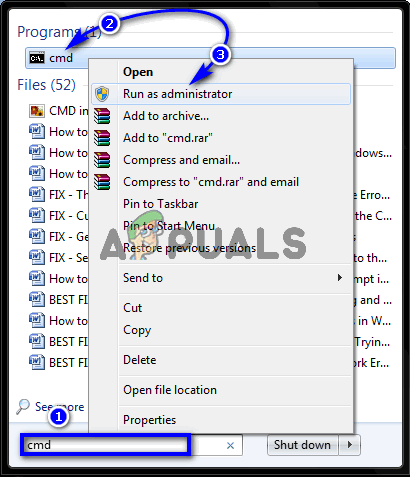
- In the elevated Command Prompt, one by one, type each of the following commands, pressing Enter after typing in each one:
ipconfig /flushdns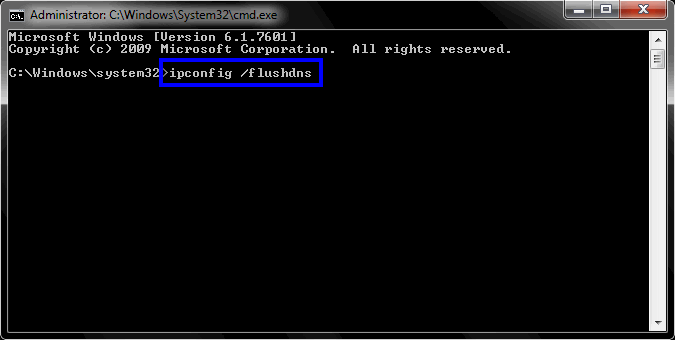 ipconfig /renewdns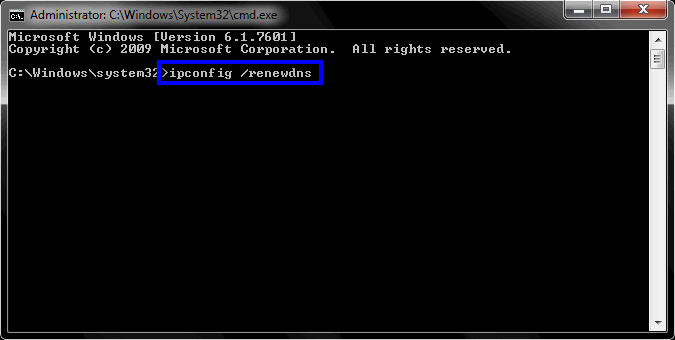
- Once done, close the elevated Command Prompt.
- Launch World of Warcraft and try logging in to your account to see whether or not the problem has been resolved.
Solution 2: Wait out the storm
If flushing your DNS does not get rid of the problem for you, there’s only one explanation – the underlying cause of error code BLZ51903003 is a server-side issue or simply Blizzard performing some maintenance on the game and its servers. If that is the case, there is really nothing you can do on your own to get rid of the issue. The only viable course of action for you in this case would be to wait out the storm – wait for the server-side problem to be fixed or for the maintenance to conclude, at which point your access to World of Warcraft’s servers will be restored. Be sure to monitor Blizzard Entertainment’s official Twitter account and other social avenues for news regarding the outage, for ETAs on a resolution to the problem or the conclusion of maintenance, and to be informed when access to servers has been restored for players.
Comments
Post a Comment