FIX: Pandora Stops Playing Music When Screen Times Out

Pandora is one of the most popular music streaming services out there, and since that is the case, there is a dedicated Pandora application for Windows 8/8.1. This dedicated application brings a Pandora tile to the user’s Start screen, rendering the application only a couple of clicks away at all times. However, the Windows 8/8.1 Pandora application does have a couple of bugs, one of the most aggravating ones being the fact that when the user’s computer screen times out and goes black, the Pandora application stops playing music. The same also happens when any screensaver other than the Windows 8/8.1 default screensaver comes on.


Evidently, this problem does not present itself if you play music on Pandora by accessing Pandora’s official website through an internet browser. Your favorite music no longer being played every time your Windows 8/8.1 computer’s screen times out and goes black is most definitely a substantial issue. Unfortunately, even though the Pandora application for Windows 8/8.1 has been updated numerous times since this problem was brought to light, the people behind Pandora are yet to officially patch the application up. That being the case, the only way you can work around this problem and make sure that Pandora no longer stops playing music when your computer’s screen times out is to simply increase the amount of time your computer can stay idle before its screen is turned off. To do so, you need to:
Bring up the Charms To do so, either press Windows Logo key + C or move your mouse to the top or bottom ‘hot’ corner of the screen on the right-hand side and the Charms bar should appear in approximately one second. On a touchscreen, simply swipe in from the right-hand side of the screen to get the Charms bar to appear.
  1. Click on the Settings
  2. Click on Change PC settings.
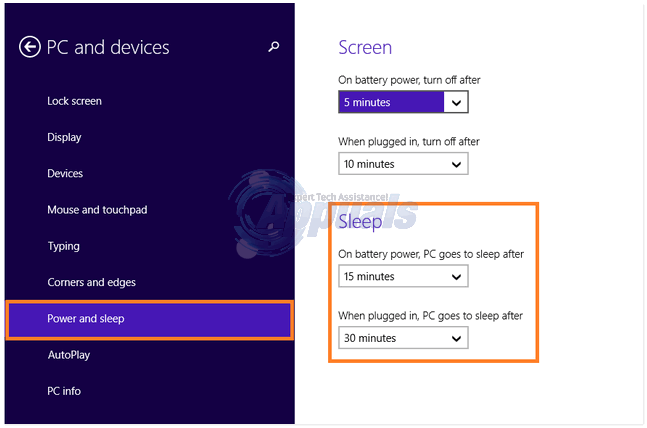
  3. Navigate to Power & sleep in the left pane.
  4. In the right pane under Screen, increase both max idle times as much as you want.windows 8 powr-sleep
  5. You should also increase both the max idle times under Sleep if they are relatively small values.

Comments

Popular posts from this blog

How to Fix the ‘Failed to Acquire the VirtualBox COM Object’ Error

Several users are reporting that they are unable to launch VirtualBox. The critical error message that comes up is  “Failed to acquire the VirtualBox COM object. The application will terminate”.  In some cases, the error is also accompanied by a second error message pointing towards the problem. The issue does not seem to be specific to a certain Windows version since it’s confirmed to occur on both Windows 8.1 and Windows 10. Failed to acquire the VirtualBox COM object. The application will now terminate. What is causing the ‘Failed to Acquire the VirtualBox COM Object’ error? We investigated this issue by looking at various user reports and the repair strategies that are commonly deployed successfully in this particular scenario. As it turns out, there are multiple culprits that might end up triggering this issue: VirtualBox is not installed with admin access  – Virtualbox is one of those software products that will require you to install them with a...

How to Format/Indent XML Files in Notepad++

Notepad++ is a free text and source code editor that is mostly used by programmers. It is an advanced alternate version of the default notepad which supports 50 programming, scripting and markup languages. It allows a user to edit codes within multiple tabs in a single window. However, it lacks the formatting for XML files or XML code. Users will find it difficult to edit or read the XML code without the correct format for code. How to Format/Indent XML Files on Notepad++ What is XML File? XML (stands for eXtensible Markup Language) which is a language designed to store and transport data. XML files are just plain text files that can’t do anything on their own. Custom tags are used in XML files to define objects and the data within each object. It defines a set of rules for encoding documents in such a format that both humans and machines could read. XML is similar to HTML but the difference is that HTML defines how data looks, while XML defines what data is. XML Code samp...

How to Fix ‘An Error Has Occurred in the Script On This Page’

Script errors are still a common occurrence among Internet surfers. And it’s not just restricted to web browsers as you might think. The  ‘An error has occurred in the script of this page’  is mostly reported with Internet Explorer, but there are a lot of programs that use IE scripts, so the issue is reported in conjunction with a lot of different application. As it turns out, the issue is not exclusive to a certain Windows version since it’s confirmed to occur on all the most recent versions including Windows 7, Windows 8.1 and Windows 10. An error has occurred in the script on this page. What is causing the  ‘An error has occurred in the script of this page’  issue? We investigated this particular issue by looking at various user reports and the repair strategies that are most commonly used to resolve this problem. Based on our investigations, there are several different culprits that might be responsible for this issue: Java is missing from the Wind...